QUICK INDEX
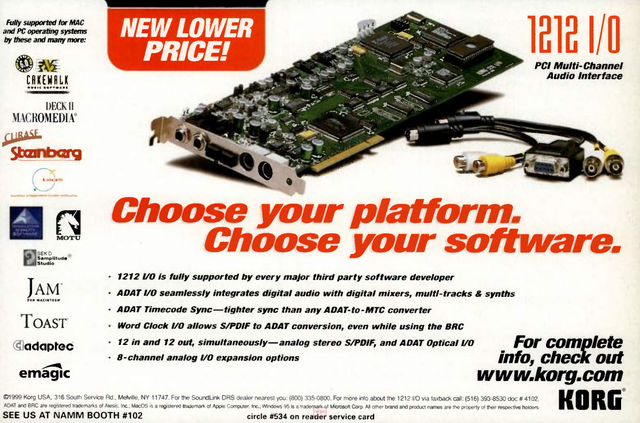
1212 I/O AT A GLANCE
- Full-length PCI Rev. 2.1 digital-audio interface
- 8-channel ADAT optical input and output
- 2-channel S/PDIF input and output
- 2-channel analog input and output
- 12 simultaneous inputs + 12 simultaneous outputs when supported by the host software
- 44.1 kHz / 48 kHz / external clock operation
- Word Clock input and output
- 9-pin ADAT Sync / ADAT timecode support
- Onboard routing and digital format conversion
- +4 dBu / -10 dBV analog operating level selection
- 20-bit Enhanced dual-bit Delta Sigma analog input conversion
- 18-bit linear analog output conversion
DOWNLOAD — 1212 I/O Owner's Manual, August 1997
COMPLETE CLASSIC MAC DRIVER TIMELINE
| Date | Release | Preservation | Download | What survives |
| Date unknown | 1.0 | DOCUMENTED ONLY | INSTALLER NOT YET FOUND | Existence and Virtual Memory startup-freeze behaviour documented by Korg |
| 16 Oct 1997 | 1.1 | COMPLETE ORIGINAL FLOPPY PRESERVED | DOWNLOAD 1.1 SOFTWARE | Original Korg shipping floppy · A2R · MOOF · DiskCopy 4.2 · Extension 1.1 · Utility 1.1 · Sound 8.0.5 · English + Japanese Read Me · original HFS filesystem |
1998
preserved file dated 3 Aug 1998 | 1.2 | PARTIALLY PRESERVED | DOWNLOAD DRIVER | Native Mac driver 1.2 survives; complete original 1.2 distribution has not yet been recovered |
1998
exact date not established | ASIO Korg 1212 v4.0 | COMPANION DRIVER PRESERVED | DOWNLOAD ASIO DRIVER | Classic Mac ASIO driver · Korg/Steinberg · ©1998 |
| 30 Jun 1999 | 1.3.1b2 BETA | PRESERVED | DOWNLOAD BETA | Utility 1.3.1b2 · Extension 1.3.1b1 · Read Me · icon |
| 4 Nov 1999 | 1.3.1 FINAL | ORIGINAL DISTRIBUTION PRESERVED | DOWNLOAD ORIGINAL STUFFIT | Final driver + Utility + Sound control panel + complete contemporary HTML FAQ + Read Me |
| 29 Mar 2000 | 2.0.2 BETA | ORIGINAL DISTRIBUTION PRESERVED | DOWNLOAD ORIGINAL STUFFIT | Driver 2.0.2 · Utility 2.0.2b2 · ASIO 5.0b1 · HTML FAQ · Read Me |
| 15 Nov 2000 | FAQ 11/15/00 | PRESERVED | DOWNLOAD FAQ | 31 HTML documents + GIF · later reorganized Korg support archive |
PRESERVED FILES / SOURCE MATERIAL
This section distinguishes files already uploaded to the Internet Archive from additional preservation masters and comparison copies which are known to survive. Internet Archive-generated OCR, metadata, torrent and derivative files are not counted as historical source files.A. CURRENTLY ON INTERNET ARCHIVE — SOURCE FILES
Archive item: Korg SoundLink DRS 1212 I/O — Mac OS Drivers, ASIO Driver, FAQ and Owner's Manual| File | Size | Classification |
| 1212 I/O Version 1.1.zip | 137.2 KB | Version 1.1 software / modern ZIP preservation copy; secondary to the original-floppy preservation below |
| 1212 I/O 1.2.zip | 31.7 KB | Version 1.2 native driver only · MacBinary II · partial preservation of the 1.2 software generation |
| ASIO Korg 1212.zip | 10.2 KB | Standalone Korg/Steinberg ASIO v4.0 driver · Classic Mac MacBinary II |
| 1212 I/O 1.3.1.zip | 125.0 KB | 30 Jun 1999 — 1.3.1b2 BETA package · Utility 1.3.1b2 + Extension 1.3.1b1 |
| 1212_V131.sit | 204.8 KB | 4 Nov 1999 — ORIGINAL FINAL 1.3.1 StuffIt/MacBinary distribution · preferred archival master for final 1.3.1 |
| 1212_V202.sit | 207.0 KB | 29 Mar 2000 — ORIGINAL 2.0.2 BETA StuffIt distribution · Extension 2.0.2 + Utility 2.0.2b2 + ASIO 5.0b1 + FAQ |
| 1212_FAQ_HTML.zip | 88.4 KB | Standalone Korg FAQ snapshot · version 11/15/00 · 31 HTML files + GIF |
| 1212IO_E.pdf | 893 KB | English Owner's Manual · August 1997 · 58 pages |
B. VERSION 1.1 — COMPLETE ORIGINAL PHYSICAL-MEDIA PRESERVATION MASTER
Status: Preserved from an original Korg shipping floppy. This is the authoritative preservation source for version 1.1. It is more complete than the small 1.1 ZIP currently on Archive.org.
Preservation container / master set:SoundLink DRS 1212 I-O - MacOS Software v1.1 (Korg, Inc.)
Original disk-image files:| File | Exact size | Purpose |
| SoundLink DRS 1212 I-O - Korg 1212 I-O.a2r | 44,234,038 bytes | Primary flux-level preservation · Applesauce A2R 3.x · 3.5" DS / 80-track · write-protected |
| Korg 1212 I-O.moof | 4,015,775 bytes | MOOF disk image · DSHD / MFM / 1.44 MB · write-protected |
| Korg 1212 I-O.dc42 | 1,474,644 bytes | Apple DiskCopy 4.2 image · volume Korg 1212 I/O · 1.44 MB MFM |
Physical-media documentation:| File | Exact size | Contents |
| SoundLink DRS 1212 I-O - Disk 1 - Front.JPG | 2,737,073 bytes | Photograph of the original Korg floppy — front |
| SoundLink DRS 1212 I-O - Disk 1 - Rear.JPG | 2,866,387 bytes | Photograph of the original Korg floppy — rear |
| SoundLink DRS 1212 I-O - Korg 1212 I-O - Side 0.png | 448,909 bytes | Applesauce disk / track visualization — side 0 |
| SoundLink DRS 1212 I-O - Korg 1212 I-O - Side 1.png | 453,874 bytes | Applesauce disk / track visualization — side 1 |
| Applesauce Extraction Log.txt | 3,664 bytes | Applesauce filesystem extraction report · Macintosh HFS · 6 files · no extraction errors |
Extracted original HFS filesystem:Korg 1212 I/O
│
├── Desktop
│
├── Install in System Folder/
│ ├── 1212 I/O
│ └── Sound
│
├── Japanese Read Me/
│ └── 1212 I/O Update ReadMe-J
│
└── Korg 1212 I/O Software/
├── 1212 I/O Read Me
└── 1212 I/O Utility 1.1
Extracted Classic Mac files and forks:| File | Type / Creator | Data Fork | Resource Fork |
| 1212 I/O | ndrv / 1212 | 42,813 bytes | 39,415 bytes |
| 1212 I/O Utility 1.1 | APPL / 12UT | 83,319 bytes | 235,066 bytes |
| Sound | cdev / soun | 0 bytes | 54,258 bytes |
| 1212 I/O Read Me | ttro / ttxt | 12,498 bytes | 1,232 bytes |
| 1212 I/O Update ReadMe-J | ttro / ttxt | 15,404 bytes | 1,172 bytes |
| Desktop | FNDR / ERIK | 0 bytes | 64,323 bytes |
C. KNOWN PRESERVED COMPARISON / CONVENIENCE COPIES
These are worth retaining for comparison and convenient extraction, but they do not supersede the original-format archival masters above.
| File | Classification | Archival role |
| 1212 I/O Version 1.1.zip | Extracted / modern ZIP copy of version 1.1 | Convenience copy; original physical-media A2R/MOOF/DC42 set is authoritative |
| Korg1212 1.3.1.zip | Extracted/repacked copy of final 1.3.1 | Convenience / comparison copy; contents match the final components in `1212_V131.sit`; original StuffIt/MacBinary package remains authoritative |
| 1212 I/O 1.3.1.zip | 1.3.1b2 beta | Historically distinct release — not a duplicate of final 1.3.1 and must be preserved separately |
PRESERVATION HIERARCHY
1.1
PRIMARY MASTER       original physical floppy
                     ├─ A2R flux image
                     ├─ MOOF image
                     └─ DiskCopy 4.2 image
SUPPORTING EVIDENCE  front/rear photographs
                     side-0/side-1 visualizations
                     Applesauce extraction log
EXTRACTED CONTENTS   complete HFS filesystem + Data/Resource Forks
CONVENIENCE COPY     1212 I/O Version 1.1.zip

1.2
SURVIVING SOURCE     1212 I/O 1.2.zip
                     native driver only
STATUS               partial — full original package still wanted

1.3.1b2
SURVIVING SOURCE     1212 I/O 1.3.1.zip
STATUS               historical beta — keep separately

1.3.1 FINAL
PRIMARY MASTER       1212_V131.sit
CONVENIENCE COPY     Korg1212 1.3.1.zip

2.0.2 BETA
PRIMARY MASTER       1212_V202.sit

ASIO 4.0
SURVIVING SOURCE     ASIO Korg 1212.zip

FAQ 11/15/00
SURVIVING SOURCE     1212_FAQ_HTML.zip

OWNER'S MANUAL
SURVIVING SOURCE     1212IO_E.pdf
PACKAGE-BY-PACKAGE CONTENTS AND FORENSIC NOTES
1.0 — DOCUMENTED, INSTALLER NOT YET RECOVERED
Korg's surviving Mac support documentation confirms version 1.0.
The 1.0 extension could freeze the Macintosh during startup when Virtual Memory was enabled.
Recovery procedure documented by Korg:
- Start with extensions disabled by holding Shift.
- Disable Virtual Memory in the Memory control panel.
- Restart.
- Upgrade the 1212 I/O software.
Korg MacOS information — Version 1.0 / Virtual MemoryPreservation status: release documented; original 1.0 software distribution still wanted.
16 OCTOBER 1997 — VERSION 1.1
ORIGINAL KORG SHIPPING FLOPPY PRESERVED
An original European Korg SoundLink DRS 1212 I/O MacOS Software
Version 1.1 floppy has now been physically acquired and preserved.
The original disk label reads:
SoundLink DRS
1212 I/O

MacOS Software
version 1.1

KORG Professional Audio
©1997 Korg Inc.
The floppy was imaged using Applesauce and is preserved in three
complementary disk-image formats:
SoundLink DRS 1212 I-O - Korg 1212 I-O.a2r
Korg 1212 I-O.moof
Korg 1212 I-O.dc42
Image formats:A2R Applesauce A2R 3.x flux image
3.5" DS / 80 track
write protected
cross-track synchronized
created with Applesauce 2.08
MOOF Macintosh MOOF disk image
DSHD / MFM / 1.44 MB
write protected
Applesauce 2.08 Fast Imager
DC42 Apple DiskCopy 4.2 image
volume: Korg 1212 I/O
1,474,560 bytes
1.44 MB MFM
SHA-256:A2R
3b6ea57e830e85f9ce8073ecb1924cfa81b80ccee104496a9864453ef961be3c
MOOF
73c7985b9f0e46da675929087745b0ad07b0f6f9924c75757fa9c58bbd3febe1
DiskCopy 4.2
44bd624e49054773a136dfbac3b63fbb90b7279fcbb82a94dd742d6fdfff613e
The preservation set also contains:
physical floppy — front photograph
physical floppy — rear photograph
Applesauce side-0 visualization
Applesauce side-1 visualization
Applesauce extraction log
extracted HFS filesystem contents
APPLESAUCE EXTRACTION RESULTMedia: 3.5" Floppy Disk
Format: Macintosh HFS
6 files detected
No issues encountered during extraction
COMPLETE ORIGINAL DISK CATALOGKorg 1212 I/O
│
├── Desktop
│
├── Install in System Folder/
│ ├── 1212 I/O
│ └── Sound
│
├── Japanese Read Me/
│ └── 1212 I/O Update ReadMe-J
│
└── Korg 1212 I/O Software/
├── 1212 I/O Read Me
└── 1212 I/O Utility 1.1
This is important because the physical shipping disk preserves more than
the commonly circulated 1.1 software repack: it also contains the
Japanese update Read Me, original HFS directory structure, Finder
metadata, Desktop resource file and the original Data/Resource Forks.
CLASSIC MAC FILE DETAILS| File | Type | Creator | Data Fork | Resource Fork |
| 1212 I/O | ndrv | 1212 | 42,813 bytes | 39,415 bytes |
| 1212 I/O Utility 1.1 | APPL | 12UT | 83,319 bytes | 235,066 bytes |
| Sound | cdev | soun | 0 bytes | 54,258 bytes |
| 1212 I/O Read Me | ttro | ttxt | 12,498 bytes | 1,232 bytes |
| 1212 I/O Update ReadMe-J | ttro | ttxt | 15,404 bytes | 1,172 bytes |
| Desktop | FNDR | ERIK | 0 bytes | 64,323 bytes |
ORIGINAL FILE MD5 VALUES — APPLESAUCE1212 I/O
4be660bdc74ff8ee4c916b31c9946096
1212 I/O Utility 1.1
5c50fce9f2ec02455202da8c9f9a1ace
Sound
13dc9f44e480a85c018dea01b2cfe801
1212 I/O Read Me
a26eaff1f079d480bbdfa013d28f272a
1212 I/O Update ReadMe-J
61ff569005373fa2dd3a72b8e0a5864e
Desktop
548cbbf6309ab11cd0f3f316ebb0fffa
INTERNAL RESOURCE-FORK VERSION VERIFICATIONThe Classic Mac `vers` resources were checked directly.
1212 I/O extension
Finder type:       ndrv
Creator:           1212
Version resource:  1.1
Copyright:         ©1996-97 Korg Inc.

1212 I/O Utility
Finder type:       APPL
Creator:           12UT
Version resource:  1.1
Copyright:         ©1996-97 Korg Inc.

Apple Sound control panel
Finder type:       cdev
Creator:           soun
Version resource:  8.0.5
Copyright:         © Apple Computer, Inc. 1986-95
The driver resources additionally contain the internal identification:
Korg 1212 IO Driver v1.1.0
©1996 Korg R&D.
while the canonical Macintosh `vers` resource reports the public
release version as
1.1.
DATES PRESERVED ON THE ORIGINAL HFS DISK1212 I/O Read Me
Read Me text: Last update 10/16/97
filesystem modified: 17 Oct 1997
1212 I/O driver
modified: 20 Oct 1997
1212 I/O Utility 1.1
modified: 20 Oct 1997
Japanese Read Me
modified: 21 Oct 1997
Desktop
modified: 4 Nov 1997
Important: the historical software release is still dated
16 October 1997, based on Korg's Read Me.
The later filesystem dates show that this particular physical shipping
disk was assembled after that Read Me revision and must not be mistaken
for later software releases.
ORIGINAL READMEKorg SoundLink DRS 1212 I/O Read Me
Last update: 10/16/97
The Read Me covers:
- installation
- compatible Sound Manager programs
- Deck II 2.6
- Cubase VST 3.5
- Digital Performer 2.1.1
- audio troubleshooting
- online resources
- compatibility issues
SOUND MANAGER SOFTWARE TESTED BY KORGBIAS Peak 1.6
Opcode Vision 3.5
Opcode Studio Vision Pro 3.5
Macromedia SoundEdit 16 version 2
Propellerhead ReBirth RB-338
Adaptec Jam 2.1
Premiere Plug-Ins
Programs with direct 1212 I/O support discussed by Korg:
Deck II              2.6+
Cubase VST            3.5+
Digital Performer     2.1.1+
Korg specifically states that:
Cubase VST 3.02
does
not work with the 1212 I/O direct support.
Korg recommends direct 1212 I/O support rather than Sound Manager
for applications which provide both methods.
SYSTEM NOTES FROM THE 1.1 README- Virtual Memory must be OFF.
- Korg recommends System 7.6.1 or later rather than System 7.5.3 Rev. 2.
- For Deck, AppleTalk should be OFF and disk cache kept small.
- After a crash, Korg recommends a complete power cycle rather than simply Restart.
- RealAudio playback through the 1212 I/O requires a compatible 44.1 kHz setting.
- The Read Me discusses lowering ATTO Express PCI SCSI transfer rate to 10 MB/s if playback problems occur.
ARCHIVAL CLASSIFICATIONRelease: Korg 1212 I/O MacOS Software 1.1
Read Me date: 16 October 1997
Status: COMPLETE ORIGINAL PHYSICAL MEDIA PRESERVATION
Primary preservation:
A2R YES
MOOF YES
DiskCopy 4.2 YES
Physical-media photos: YES
Flux visualizations: YES
Extraction log: YES
Extracted filesystem: YES
Data forks: PRESERVED
Resource forks: PRESERVED
Finder type/creator: PRESERVED
Japanese Read Me: PRESERVED
ARCHIVAL VERDICT:This physical-floppy preservation should be considered the
authoritative archival master for version 1.1.
A later StuffIt or ZIP copy remains useful as a convenience download,
but should not replace these original-media images.
1998 — VERSION 1.2
DOWNLOAD PRESERVED 1.2 DRIVER
Important preservation distinction:
Korg's contemporary description of software 1.2 says that the release contained:
updated 1212 I/O extension
updated 1212 I/O Utility
new HTML-format 1212 I/O FAQ
Sound Manager support carried forward from 1.1
The currently preserved `1212 I/O 1.2.zip`, however, is
not the complete original 1.2 distribution.
It contains a single MacBinary II file preserving the native Classic Mac driver/resource fork.
Internal resources identify it as:
Korg 1212 I/O
native driver type: ndrv
version: 1.2
Preserved MacBinary modification date:
3 August 1998
No separate Read Me is contained in this ZIP.
Preservation status: PARTIAL.Still wanted for 1.2:
original complete 1.2 distribution
1212 I/O Utility 1.2
the contemporary HTML FAQ bundled with 1.2
original Read Me, if separately supplied
1998 — STANDALONE KORG / STEINBERG ASIO DRIVER v4.0
DOWNLOAD ASIO KORG 1212 v4.0
The ZIP contains a MacBinary II file preserving the Classic Macintosh resource fork.
Internal Macintosh resources identify it as:
ASIO Korg 1212 I/O v4.0
©1998 Korg/Steinberg

Macintosh file type: AsDr
Creator:             stCA
This is a separate application-level ASIO driver and should
not be confused with the low-level 1212 I/O system extension.
It is also separate from the later:
ASIO Korg 1212 v5.0b1
included with the 2.0.2 beta package.
30 JUNE 1999 — 1.3.1b2 BETA PACKAGE
DOWNLOAD 1.3.1b2 BETA
This is NOT the same package as the final November 1999 1.3.1 release.
The archive filename is simply:
1212 I/O 1.3.1.zip
but the internal Read Me explicitly identifies the release as:
1212 I/O release 1.3.1b2
6/30/99
Actual contents:1212 I/O 1.3.1/
├── 1212 I/O Utility 1.3.1
│ └── internally: 1.3.1b2
├── Read Me 1212 I/O 1.3.1
├── 1212 I/O 1.3.1
│ └── internally: 1.3.1b1
└── Icon
So the beta package combines:
Utility     1.3.1b2
Extension   1.3.1b1
The Read Me instructs users to continue using the earlier 1.3.1b1 extension together with the newer 1.3.1b2 Utility.
1.3.1b2 Utility change:Compatibility fix for the PACE USB Floppy Enabler used for key-disk copy protection via USB floppy drives.
1.3.1b1 Extension changes:- FireWire-related compatibility fix
- startup 1212 I/O icon intentionally removed
The missing startup icon is therefore normal for this software generation.
FORENSIC COMPARISON WITH FINAL 1.3.1These packages are
not duplicates.
For the Utility, the beta and final releases have an identical Data Fork:
MD5 Data Fork:
6b134afeeb0eba7d2bddd0fdd415578e
but different Resource Forks.
The Resource Fork identifies:
Beta Utility:    1.3.1b2
Final Utility:   1.3.1
The Extension differs more substantially:
Beta Extension:   1.3.1b1
Final Extension:  1.3.1
Both the Data Fork AND Resource Fork of the Extension differ between beta and final.The final 1.3.1 Extension is therefore not merely the beta Extension renamed.
Preservation verdict:KEEP PERMANENTLY
historically distinct 1.3.1b2 beta release
4 NOVEMBER 1999 — VERSION 1.3.1 FINAL
DOWNLOAD ORIGINAL FINAL 1.3.1 STUFFIT PACKAGE
Original Korg download — Wayback Machine
This is the preferred archival master for final 1.3.1.
`1212_V131.sit` preserves the original Classic Macintosh distribution rather than merely extracted files.
Forensic identification:
MacBinary filename: 1212 I/O 1.3.1.sit
Finder type:        SIT5
Creator:            SIT!

StuffIt data fork:  209,530 bytes
complete MacBinary: 209,664 bytes
The StuffIt archive identifies the software as originating from the StuffIt generation:
StuffIt ©1997-1998 Aladdin Systems, Inc.
COMPLETE INTERNAL CONTENTS — 19 ACTUAL FILES1212 I/O 1.3.1/
│
├── 1212 I/O 1.3.1 Update Read Me
│
├── 1212 I/O Software/
│ └── 1212 I/O Utility 1.3.1
│
├── 1212_FAQ_HTML/
│ ├── 1212_and_cakewalk.htm
│ ├── 1212_and_cubase_vst.htm
│ ├── 1212_and_deck_ii.htm
│ ├── 1212_and_dp.htm
│ ├── 1212_and_logic_audio.htm
│ ├── 1212_and_vision.htm
│ ├── 1212_clicks_pops.htm
│ ├── 1212_faq_home.htm
│ ├── 1212_features.htm
│ ├── 1212_feedback_loops.htm
│ ├── 1212_general_info.htm
│ ├── 1212_mac_info.htm
│ ├── 1212_software_support.htm
│ ├── 1212_system_setups.htm
│ └── 1212_windows_info.htm
│
└── Install In System Folder/
├── 1212 I/O v1.3.1
└── Sound
FINAL COMPONENT FORKS1212 I/O Utility 1.3.1
Data Fork: 129,670 bytes
Resource Fork: 234,475 bytes
1212 I/O v1.3.1 Extension
Data Fork: 68,012 bytes
Resource Fork: 54,321 bytes
Sound control panel
Data Fork: 0 bytes
Resource Fork: 54,258 bytes
Internal Resource Fork version strings confirm:
Utility:     1.3.1
Extension:   1.3.1
RELEASE NOTES — MAIN CHANGESVersion 1.3/1.3.1 addresses:
- Apple FireWire extension compatibility
- PACE USB Floppy Enabler compatibility
- Mac OS 8.6 compatibility
- startup-icon problems on some non-Apple displays
Korg explicitly approved Mac OS 8.6 for use with this release after the earlier suspected problem was identified as FireWire-related.
The startup icon was intentionally removed.
Korg also noted possible recording glitches when using BIAS Peak through the 1212 I/O Sound Manager driver.
Read Me revision:
11/4/99
BLUE & WHITE G3 / G4Korg's later FAQ identifies 1212 I/O software
1.3.1 or later as the required software generation for Blue & White Power Mac G3 and Power Mac G4 systems.
CONVENIENCE REPACKAn extracted/repacked final 1.3.1 ZIP also exists in the preservation set outside the original StuffIt master.
Its actual driver, Utility and Sound control-panel forks match the final StuffIt package.
A convenience ZIP may contain modern filesystem artefacts such as:
.DS_Store
__MACOSX/.../._.DS_Store
Those are
not part of the original Korg distribution.
For archival purposes:
MASTER / KEEP:       1212_V131.sit
CONVENIENCE COPY:    extracted/repacked ZIP
The StuffIt/MacBinary file remains authoritative because it preserves the original Classic Mac package structure, Finder metadata and resource forks.
29 MARCH 2000 — VERSION 2.0.2 BETA
DOWNLOAD ORIGINAL 2.0.2 STUFFIT PACKAGE
NOTICE: Korg explicitly labels this beta software.
It is nevertheless the newest surviving Mac 1212 I/O software package currently preserved here.
KNOWN PACKAGE CONTENTS
1212 I/O v2.0.2

1212 I/O Utility 2.0.2b2

1212 I/O HTML FAQ

ASIO Korg 1212 v5.0b1

Read Me 1212 I/O 2.0.2

Install In System Folder/

Install in ASIO Drivers Folder/
The package therefore combines the low-level Mac driver, Korg Utility, ASIO driver, installation structure, Read Me and offline Korg support documentation in a single surviving distribution.
MAIN CHANGES- support added for the single-processor Gigabit Ethernet Power Mac G4 generation
- multiprocessor G4 testing had begun; Korg described results as generally positive but testing as incomplete
- ASIO 2.0 support
- ADAT timecode support through ASIO 2.0
- Cubase VST 4.1+ support for ASIO 2.0 ADAT timecode
COMPONENT VERSIONS1212 I/O Extension 2.0.2
1212 I/O Utility 2.0.2b2
ASIO Korg 1212 5.0b1
IMPORTANT — UPDATER REQUIREMENTKorg states that this is an
updater only.
A previous installation of:
1212 I/O software version 1.1
is required.
ASIO 2.0 / ASIO 1.0 DISTINCTIONThe included ASIO driver is ASIO 2.0-generation software.
Korg warned that not every ASIO-compatible application supported ASIO 2.0.
Example:
BIAS Peak 2.1
requires ASIO 1.0
Korg therefore recommended using the 1212 I/O with BIAS Peak through Sound Manager at this point.
It is valid to use an ASIO 1.0 1212 driver with one application and the ASIO 2.0 driver with another.
CUBASE VST 4.1 + ADAT TIMECODEFor ADAT timecode operation Korg specifies:
Cubase VST 4.1+
1212 I/O ASIO 2.0 driver
Clock Source = ADAT
Timecode Base = ASIO 2.0
The ADAT optical output must feed the 1212 I/O optical input, while the ADAT 9-pin sync output is routed through the ADAT Timecode Conditioner to the card's 9-pin input.
Read Me revision:
3/29/00
15 NOVEMBER 2000 — STANDALONE KORG FAQ ARCHIVE
DOWNLOAD 1212 I/O FAQ — VERSION 11/15/00
This is a later Korg support-site snapshot and should not be confused with the older FAQ bundled inside final 1.3.1 or 2.0.2.
FAQ version:
11/15/00
Preserved contents:31 HTML documents
1 GIF image
Topics include:
- Mac OS information
- Windows information
- Windows optimization
- supported software
- downloads
- general troubleshooting
- clicks and pops
- feedback loops
- zipper noise
- record monitoring
- PCI bus mastering
- PCI SCSI cards
- USB devices
- CPU impact
- multimedia software
- analog I/O expansion
- audio CDs
- continuous synchronization
- ADAT synchronization
- Word Clock
- Cakewalk
- Cubase VST
- Deck II
- Digital Performer
- Logic Audio
- Opcode Vision / Studio Vision
- BitHeadz software
- system configurations
- feature descriptions
- technical support
- FAQ version history
Of particular archival interest:
1212_adat_sync_word_clock.htm
This page explains that selecting ADAT as the 1212 I/O clock source derives Word Clock from the ADAT optical input.
The separate 9-pin ADAT Sync connector carries ADAT timecode rather than Word Clock.
This particular support page was not represented in the previously known set of Wayback 1212 I/O page URLs.
The November 2000 FAQ also reflects Korg's later reorganization of the site: material previously collected in `1212_general_info.htm` was split into multiple dedicated FAQ pages.
CLASSIC MAC OS / SOFTWARE COMPATIBILITY NOTES
| System / software | Known Korg information |
| Virtual Memory | Must be disabled for the early 1212 I/O software; version 1.0 could freeze the Mac during startup when VM was enabled. |
| System 7.5.3 Rev. 2 | Korg documents third-party hardware / Sound Manager problems, particularly on 9500-class systems. |
| System 7.6.1+ | Recommended by Korg instead of System 7.5.3 Rev. 2. |
| Mac OS 8.6 | Approved with final 1.3.1 after the FireWire-related problem was fixed. |
| Blue & White Power Mac G3 | Later Korg FAQ specifies 1212 I/O software 1.3.1 or later. |
| Power Mac G4 | Later FAQ specifies 1.3.1+; 2.0.2 specifically adds support for the single-processor Gigabit Ethernet G4 generation. |
| Multiprocessor G4 | 2.0.2 Read Me says testing was incomplete but results so far were generally positive. |
| BIAS Peak 1.6 | Explicitly tested as a Sound Manager application with 1.1. |
| BIAS Peak 2.1 | Does not support the ASIO 2.0 driver included with 2.0.2; Korg recommends Sound Manager or an ASIO 1.0 driver. |
| Deck II 2.6+ | Direct 1212 I/O support documented by Korg, including ADAT timecode configuration. |
| Cubase VST 3.02 | Not compatible with the 1212 I/O direct driver according to Korg. |
| Cubase VST 3.5+ | Direct 1212 I/O support. |
| Cubase VST 4.1+ | ASIO 2.0 + ADAT timecode supported with 1212 I/O 2.0.2. |
| Digital Performer 2.1.1 | Fully integrated direct support documented by Korg. |
| Digital Performer 2.4 | More CPU-efficient MAS support and direct sample-accurate ADAT timecode synchronization. |
| Opcode Vision / Studio Vision Pro 3.5 | Tested through Sound Manager; dedicated Korg FAQ documentation also survives. |
| ReBirth RB-338 | Explicitly listed as Sound Manager compatible. |
| SoundEdit 16 v2 | Explicitly listed as Sound Manager compatible. |
| Adaptec Jam 2.1 | Explicitly listed as Sound Manager compatible. |
| Premiere Plug-Ins | Explicitly listed as Sound Manager compatible. |
DOCUMENTATION AND ORIGINAL KORG SUPPORT PAGES
1212 I/O Owner's Manual — English — August 1997 — 58 pagesOffline Korg FAQ — version 11/15/00Korg — Features and specificationsKorg — MacOS General InformationKorg — Setting Up Your StudioKorg — 1212 I/O Software SupportMetric Halo — SpectraFoo / MLM 1212 I/O supportOwner's Manual contents include:PCI installation
Classic Mac OS installation
Windows 95 installation
analog level jumper configuration
analog I/O
ADAT optical I/O
S/PDIF I/O
Word Clock
ADAT Sync
ADAT Timecode Conditioner
Korg 880 A/D and 880 D/A
Korg 168RC
Yamaha 02R
multiple 1212 I/O cards
Alesis ADAT / BRC synchronization
1212 I/O Utility
routing and format conversion
Apple Sound Manager
Windows Wave devices
troubleshooting
technical specifications
ORIGINAL IMAGES

PRESERVATION GAPS / WANTED FILES
This section is intentionally retained even as the archive grows.
When one of these is found, the old entry should
not be deleted; it should be updated with the recovered filename, provenance and download link.
| Wanted | Current status |
| Original 1212 I/O software 1.0 distribution | Release documented; installer not recovered |
| Complete original 1.2 distribution | Only the 1.2 native driver is currently preserved in the archive item |
| 1212 I/O Utility 1.2 | Known to have existed as part of the 1.2 software generation; wanted |
| Original 1.2 HTML FAQ distribution | Known from Korg's release description; wanted as the exact contemporary package |
| Exact public release date for 1.2 | Preserved driver has a 3 Aug 1998 MacBinary modification date; exact release date not yet established |
| Exact release date / original distribution provenance for ASIO v4.0 | Internal resources establish ©1998 Korg/Steinberg |
| Standalone 1.3.1b1 package, if distributed separately | 1.3.1b1 Extension survives inside the 30 Jun 1999 1.3.1b2 package |
| Any release after 2.0.2 beta | None currently identified. Do not infer that a final 2.x release existed without evidence. |
ARCHIVAL POLICY
For preservation purposes these should be treated as separate objects:
original Korg distribution
beta / prerelease distribution
final release
original StuffIt / MacBinary archive
extracted contents
modern convenience ZIP
later FAQ snapshot
standalone ASIO driver
manual / documentation
disk images
Do not delete an earlier beta merely because a final version exists.Do not replace an original StuffIt/MacBinary distribution with a modern ZIP.Do not assume two Classic Mac files are identical from their visible filenames alone.For Classic Mac software, Data Fork, Resource Fork, Finder type/creator metadata and archive container format can all be historically significant.
CURRENT PRESERVATION SUMMARY
1.0                  documented only

1.1                  complete original physical media preservation
                      A2R · MOOF · DiskCopy 4.2
                      Extension 1.1 · Utility 1.1 · Sound 8.0.5
                      English + Japanese Read Me · original HFS filesystem

1.2                  partially preserved
native driver recovered

ASIO v4.0            preserved
Korg/Steinberg ©1998

1.3.1b2 — 30 Jun 99 preserved
Utility 1.3.1b2
Extension 1.3.1b1

1.3.1 — 4 Nov 99     preserved
ORIGINAL FINAL STUFFIT PACKAGE
19 actual files
Utility 1.3.1
Extension 1.3.1
Sound control panel
complete contemporary FAQ

2.0.2 — 29 Mar 00    preserved
ORIGINAL BETA STUFFIT PACKAGE
Extension 2.0.2
Utility 2.0.2b2
ASIO 5.0b1
FAQ
Read Me

FAQ — 15 Nov 00      preserved
31 HTML files + GIF

Owner's Manual       preserved
August 1997
58 pages

 Author
Topic: KORG SoundLink DRS 1212 I/O (1996) - PCI Multi-Channel Audio Interface card (Read 700 times)
Author
Topic: KORG SoundLink DRS 1212 I/O (1996) - PCI Multi-Channel Audio Interface card (Read 700 times)
